Create Your Brand Kit
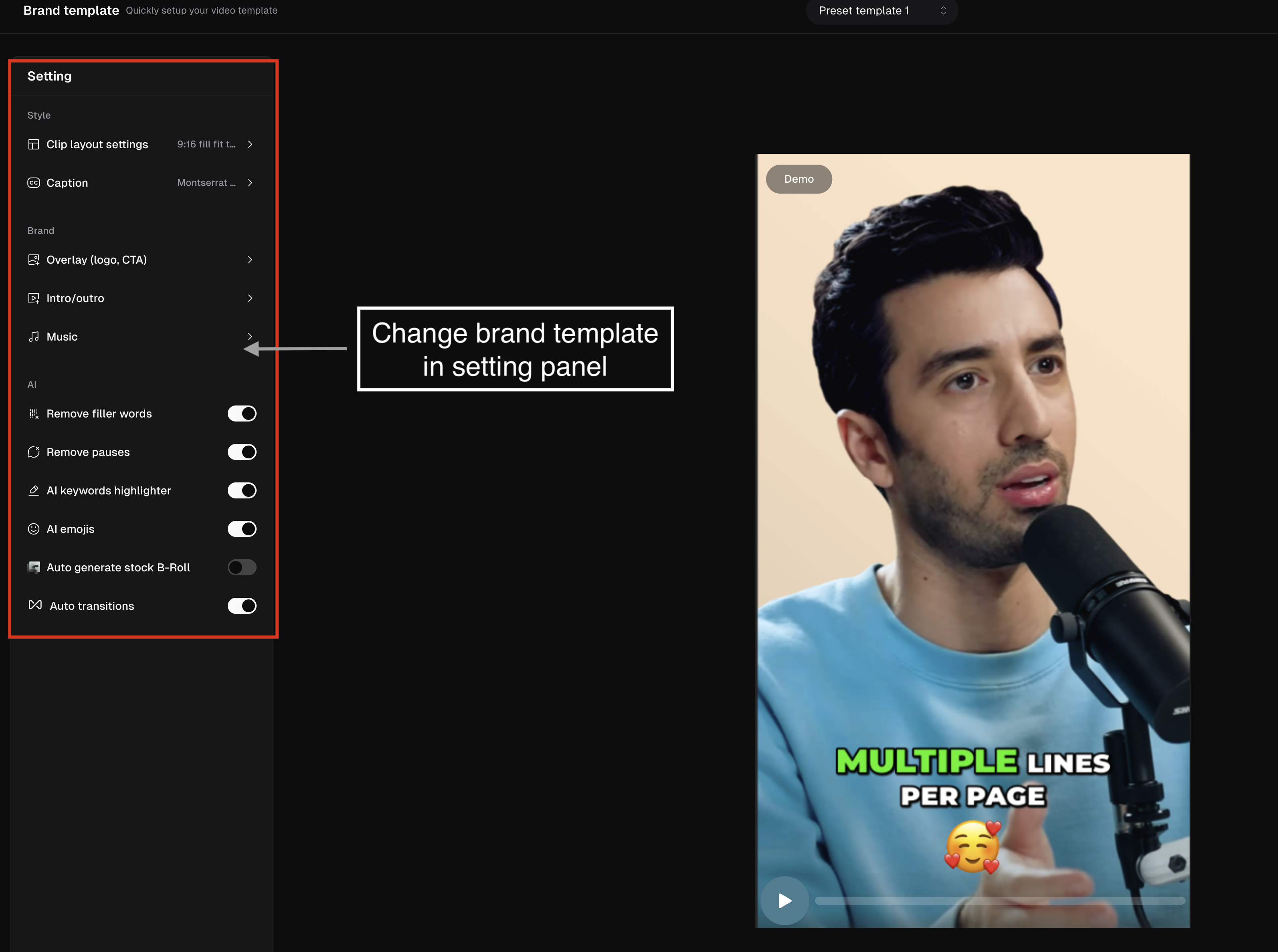
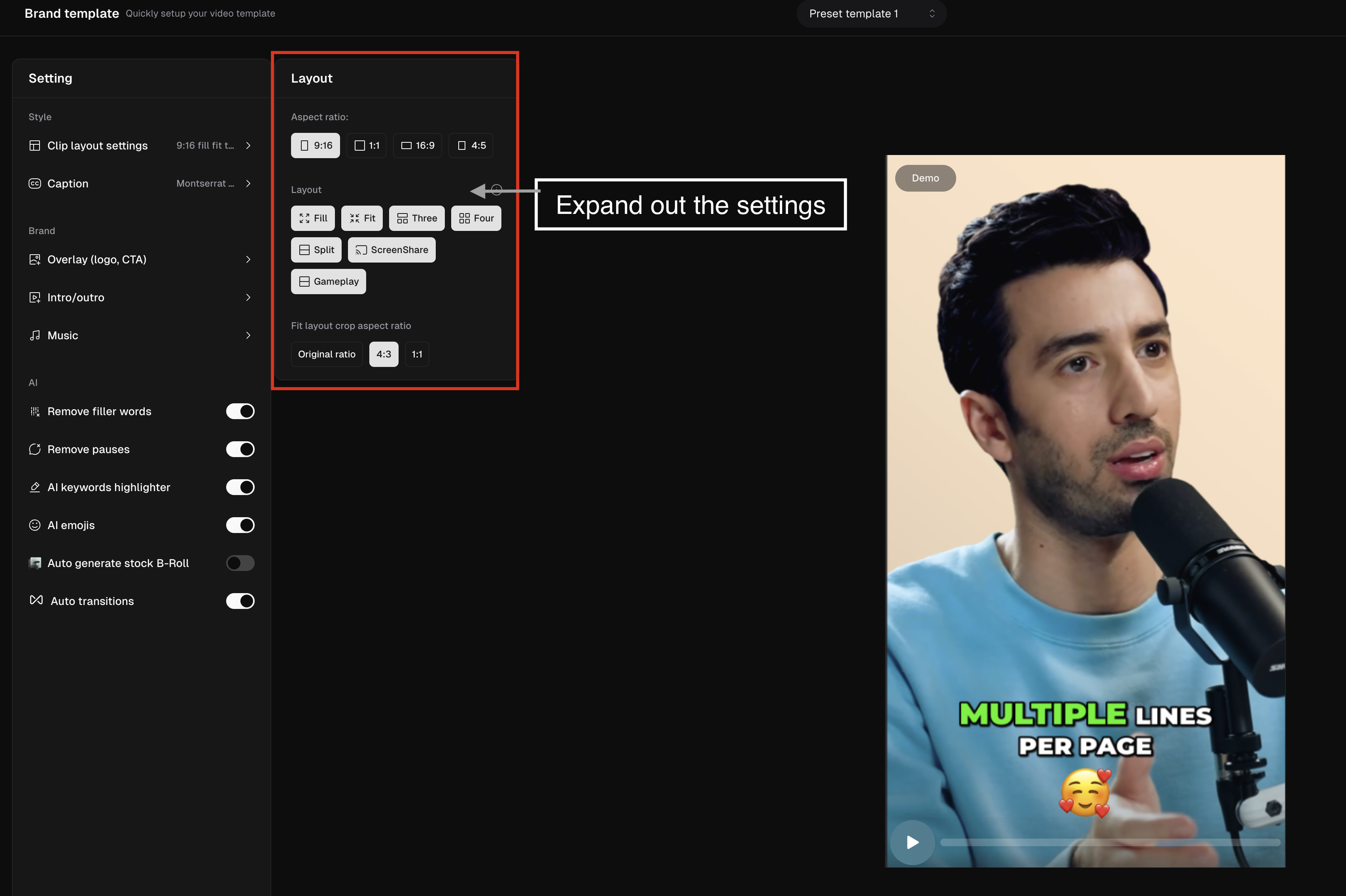
Brand Kit is a place where you can set up your branding preferences and apply them to all of your clips. To set up your Brand Kit, click Brand kit in the left sidebar or visit here. On the Brand kit page, you can set up your preferences. Starter users can set up 1 Brand Kit, and Pro users can set up up to 4 Brand Kits. Free users can apply the default Brand Kit in the Editor, but need to upgrade to create one.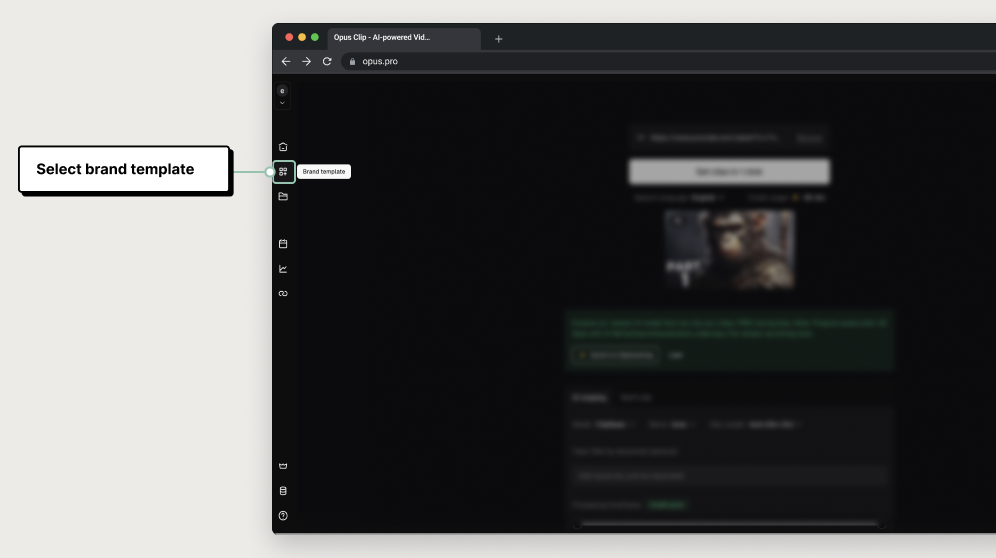
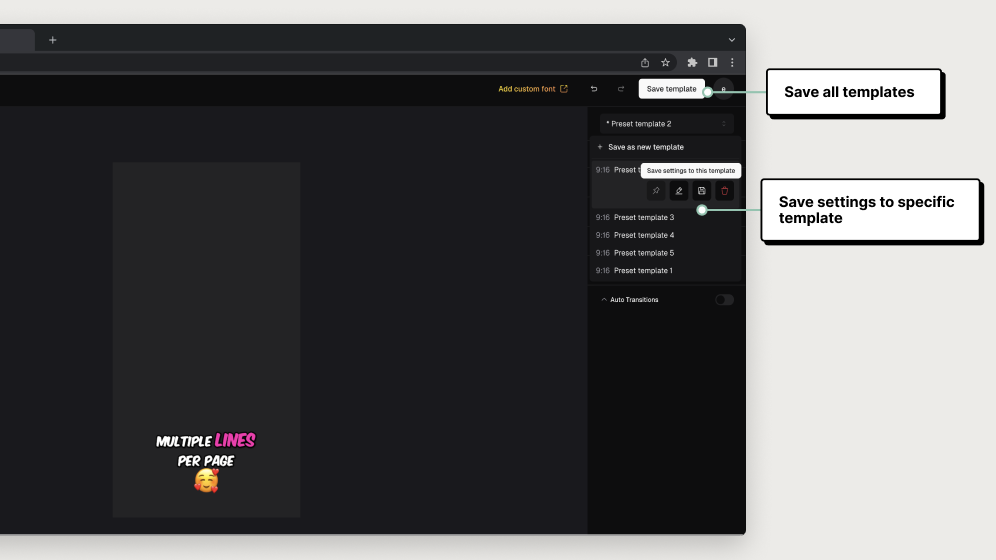
Add Your Social Accounts for 1-Click Posting
You can connect your social media accounts to make it easier to post directly from OpusClip. Go to the left tool bar and click Social Accounts. When hovering over it, it will display Social Accounts.


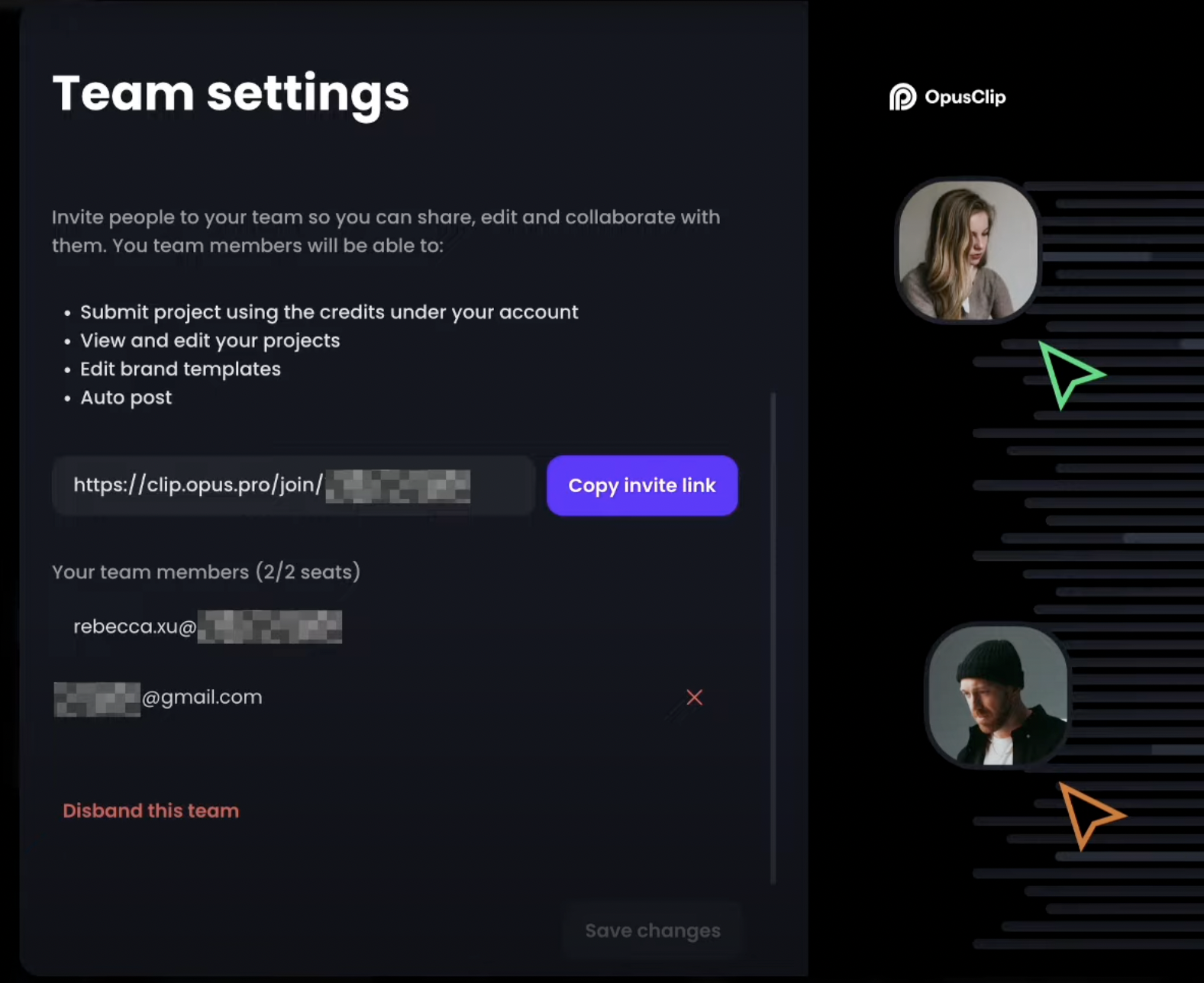
Setup Your Team Workplace
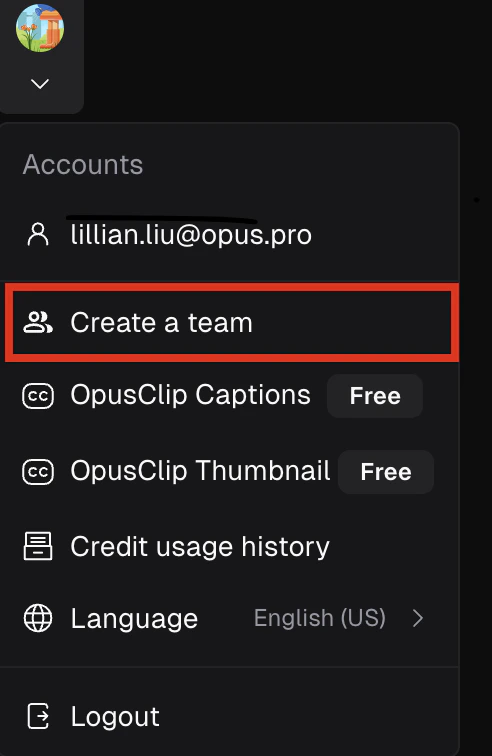
You can create a Team Workplace and invite your teammates to join. Here is how you can do this:- Click your Profile image on the left sidebar and go to Create a team
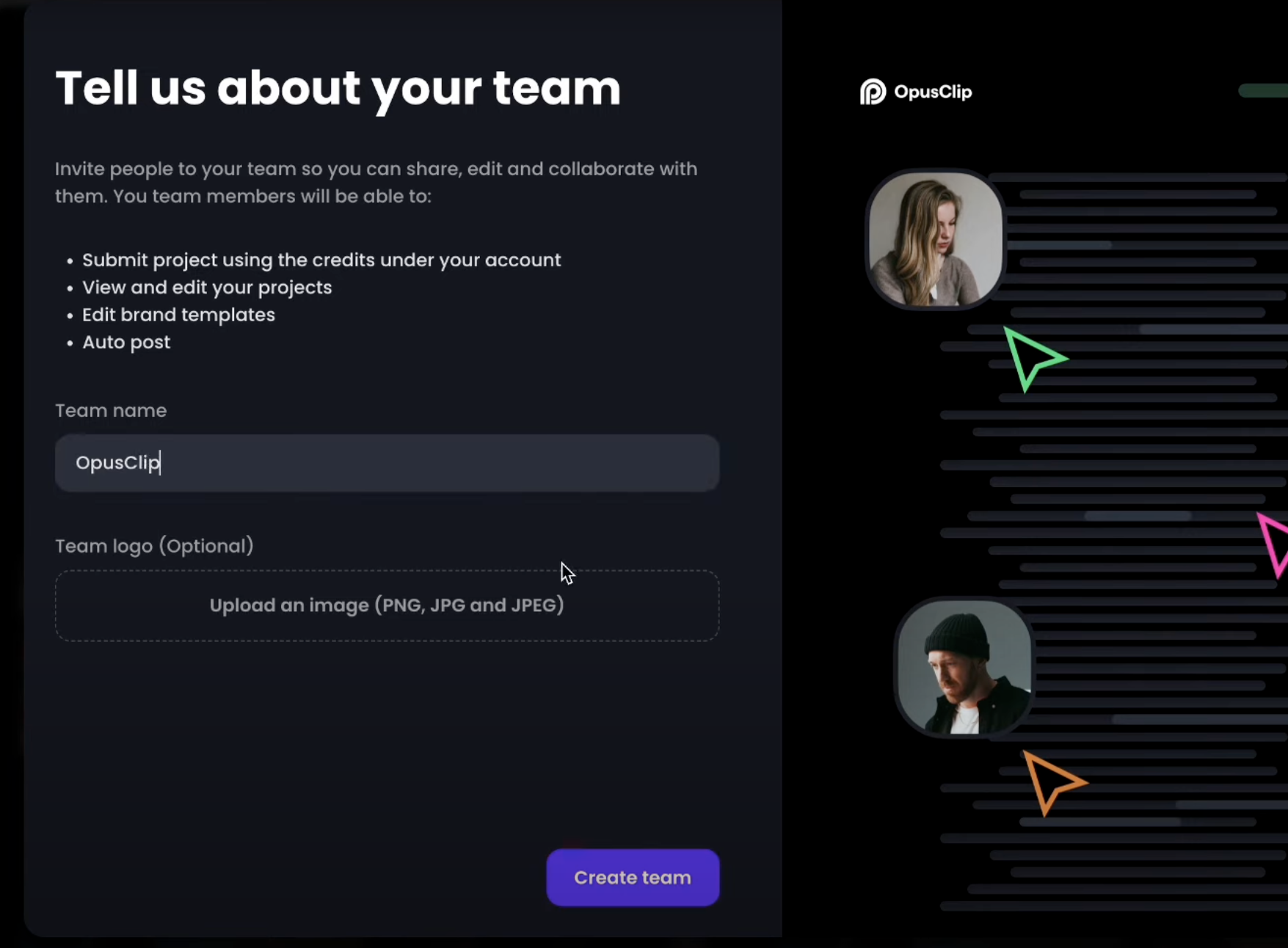
- Name your Team Workspace, add a logo and create the team
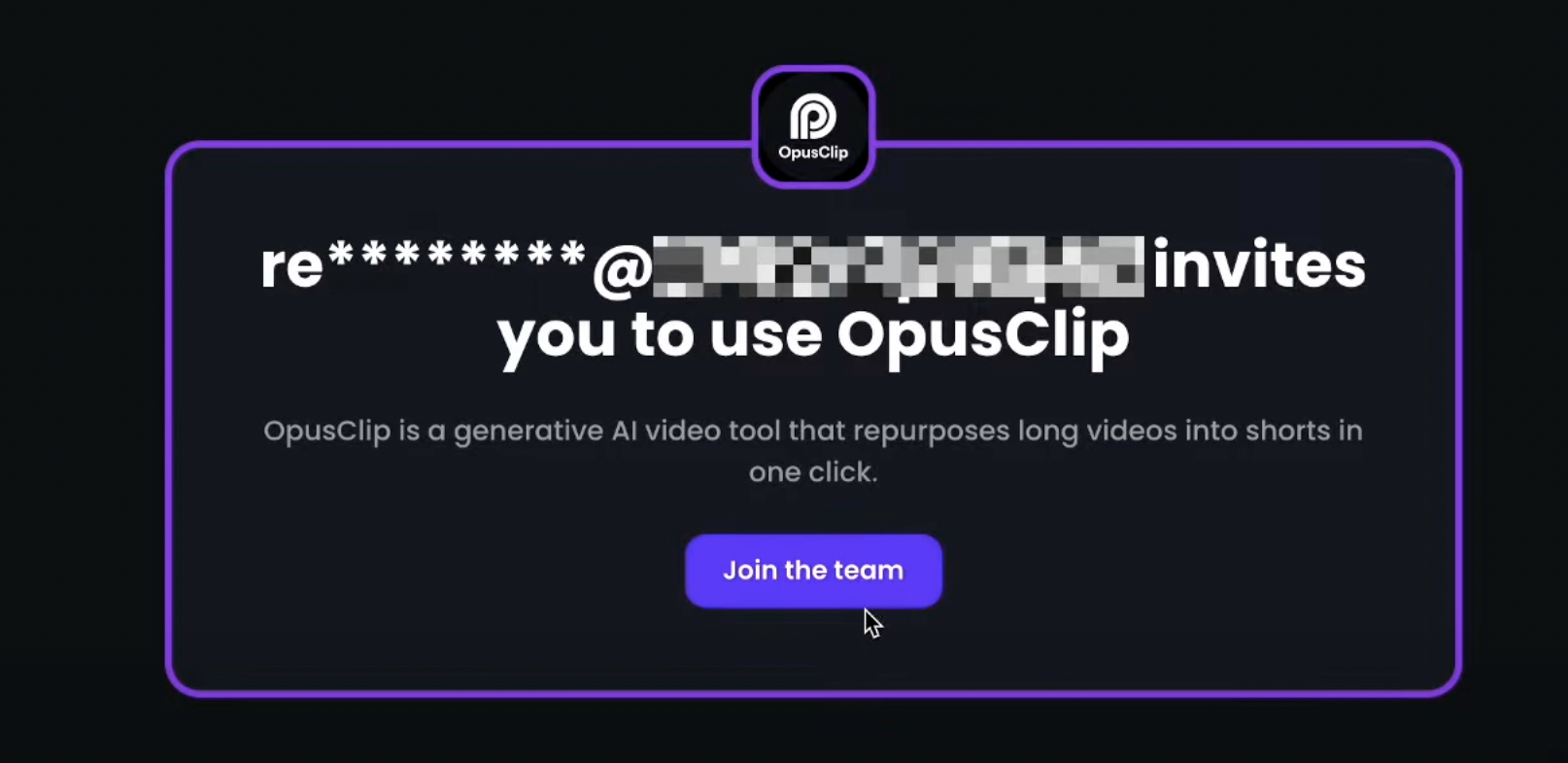
- Copy the invitation link and send it to your teammates.
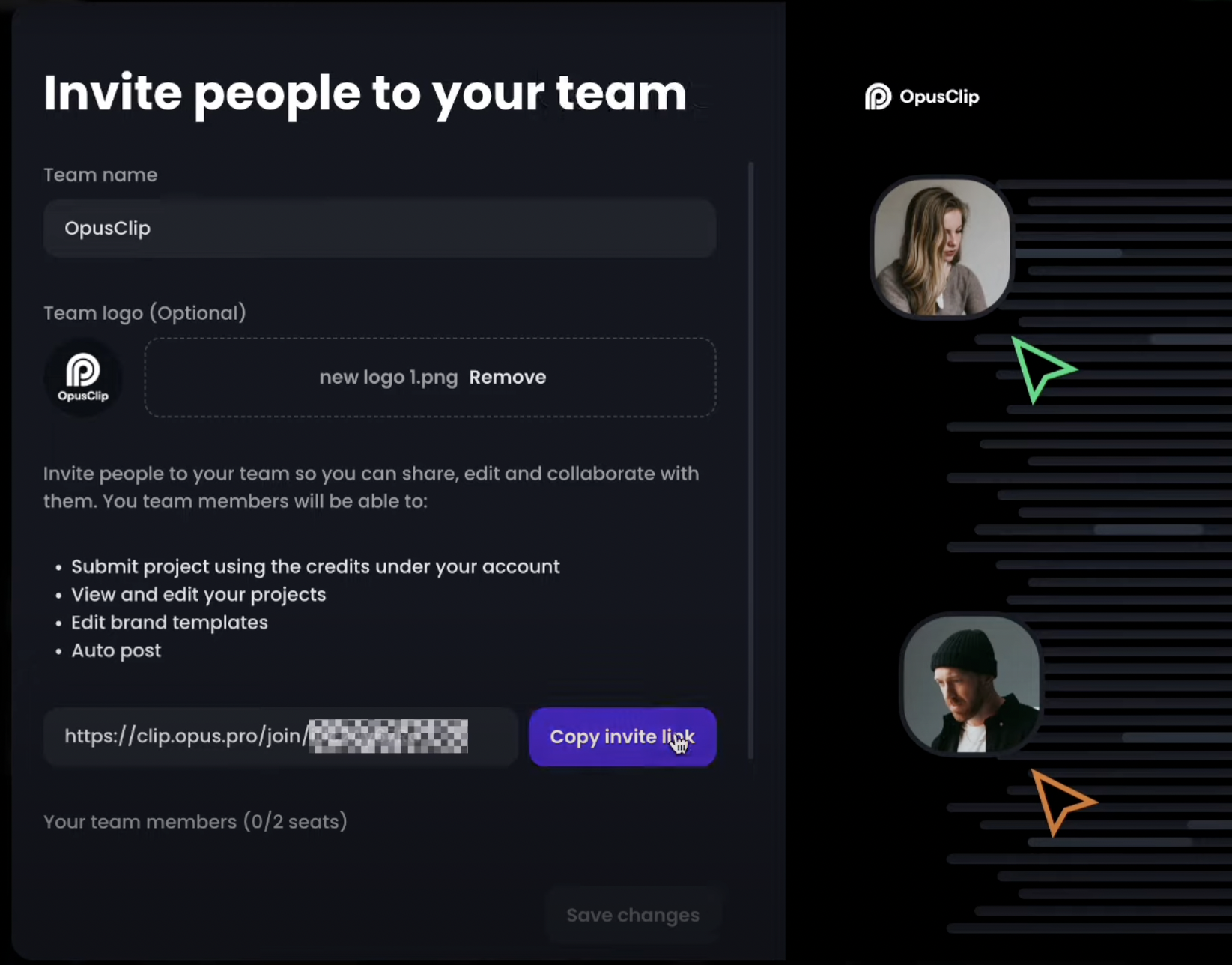
- Then your teammates can join the team by clicking into the invitation link.
- As the team owner, you can also manage the team members on the Team settings page