
What types of B-roll can I add?
- AI image: images generated for each spot. All images are planned together from your whole video, so they stay on topic and share one consistent style.
- AI video: short video clips generated for each spot. By default, AI Style matches the color, lighting, and camera feel of your footage. You can also pick a preset style.
- Stock video: footage from our stock library that matches each spot.
Add B-roll automatically
From the clips page
You can trigger the B-roll functionality directly next to clips you want to add B-rolls to. This will take you to the editor and trigger the Find spots functionality in the editor below. In Grid view, hover over the scissor icon to find Add B-roll.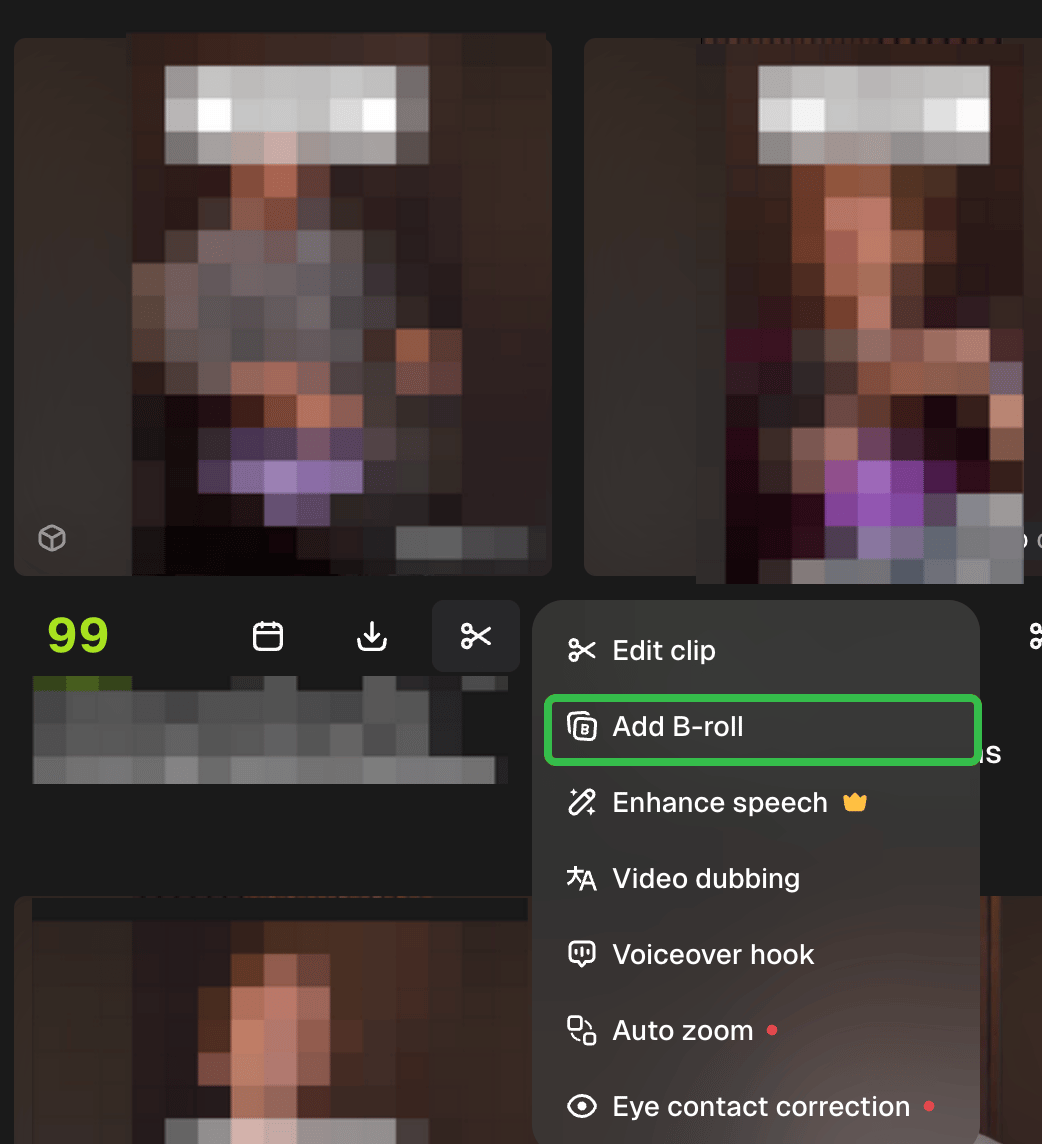
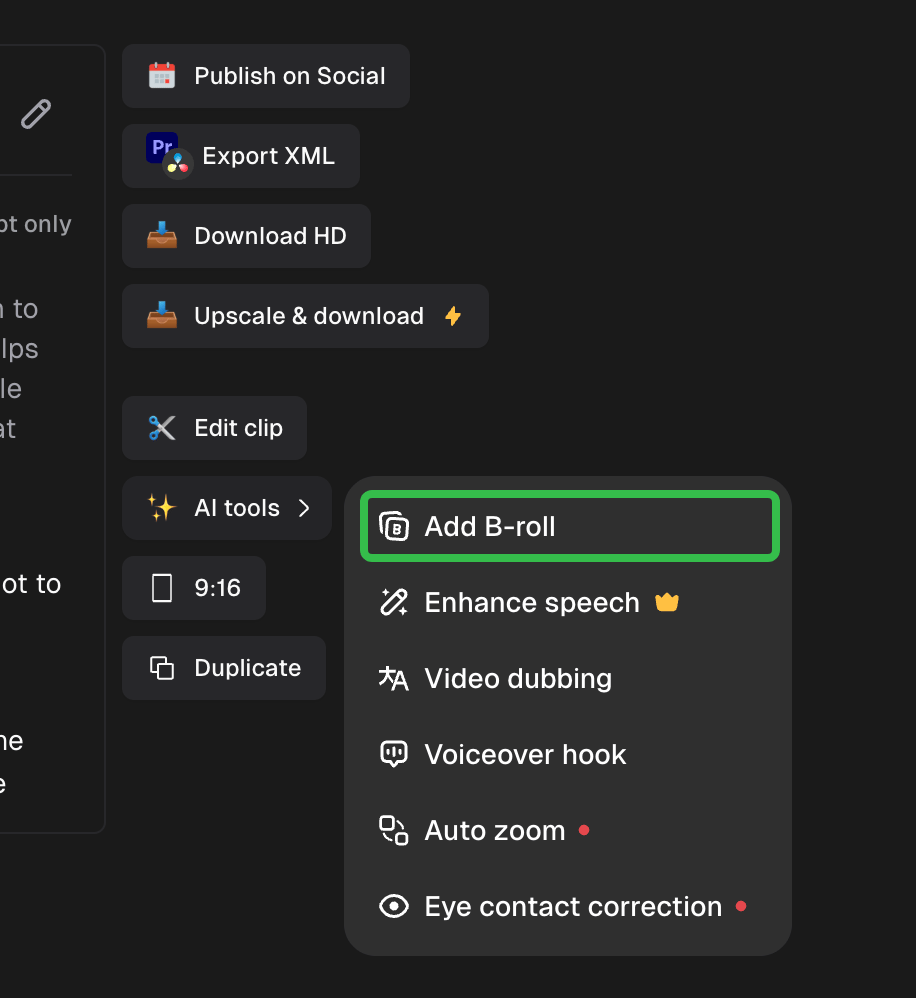
From the editor
- Open a clip in the editor and click B-roll in the right-side panel.
- Click Find spots. OpusClip reads your transcript and suggests where B-roll fits. This takes about 30 seconds.
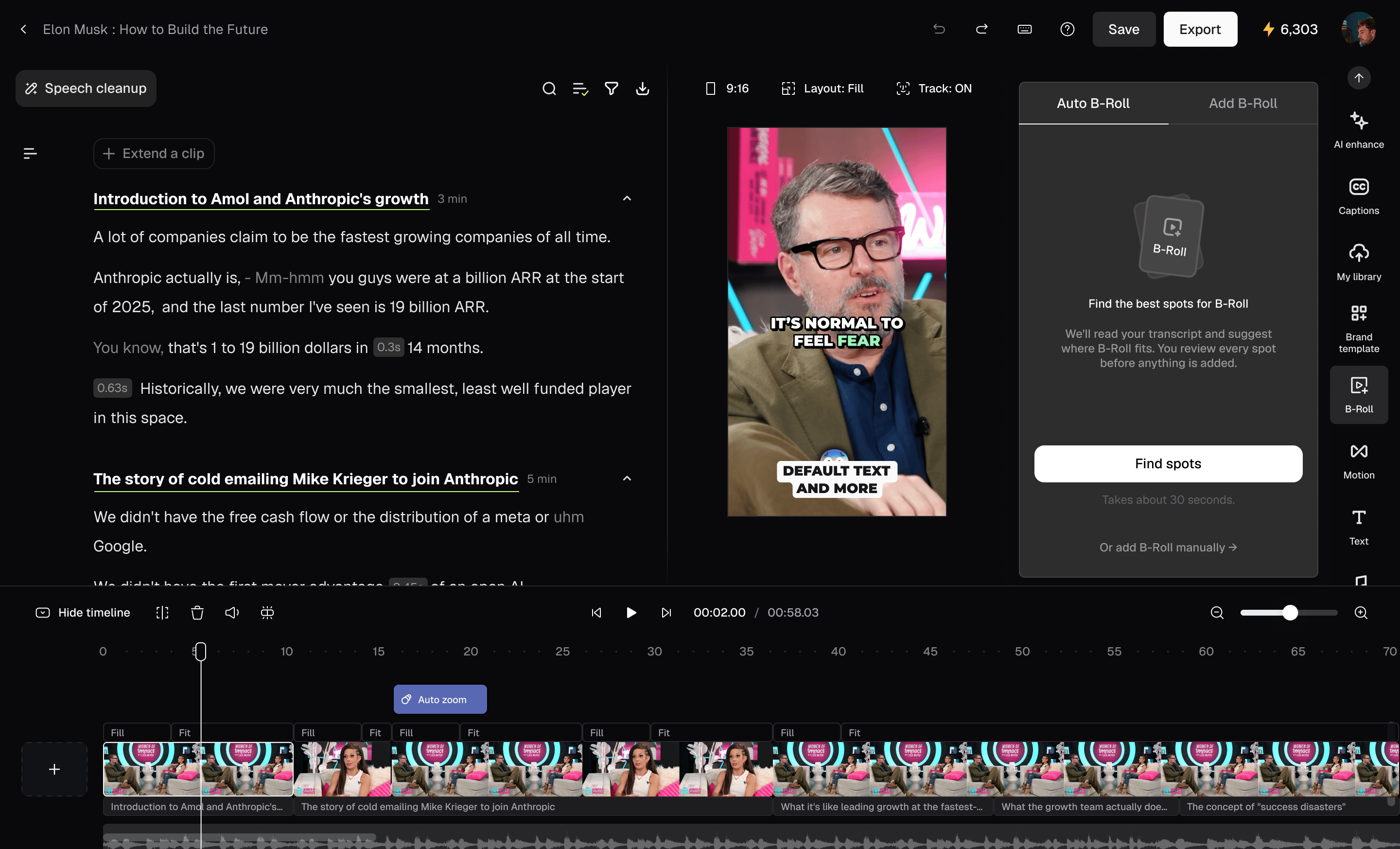
- Review the suggested spots and deselect any you don’t want.
- Under Fill with, choose AI image, AI video, or Stock video.
- For AI image, choose an Image model: Seedream 5.5 (the default) or GPT Image 2.5. The image model picker is available on web.
- For AI video, choose a Video model and a style. AI Style matches the color, lighting, and camera feel of your footage. You can also pick a preset style.
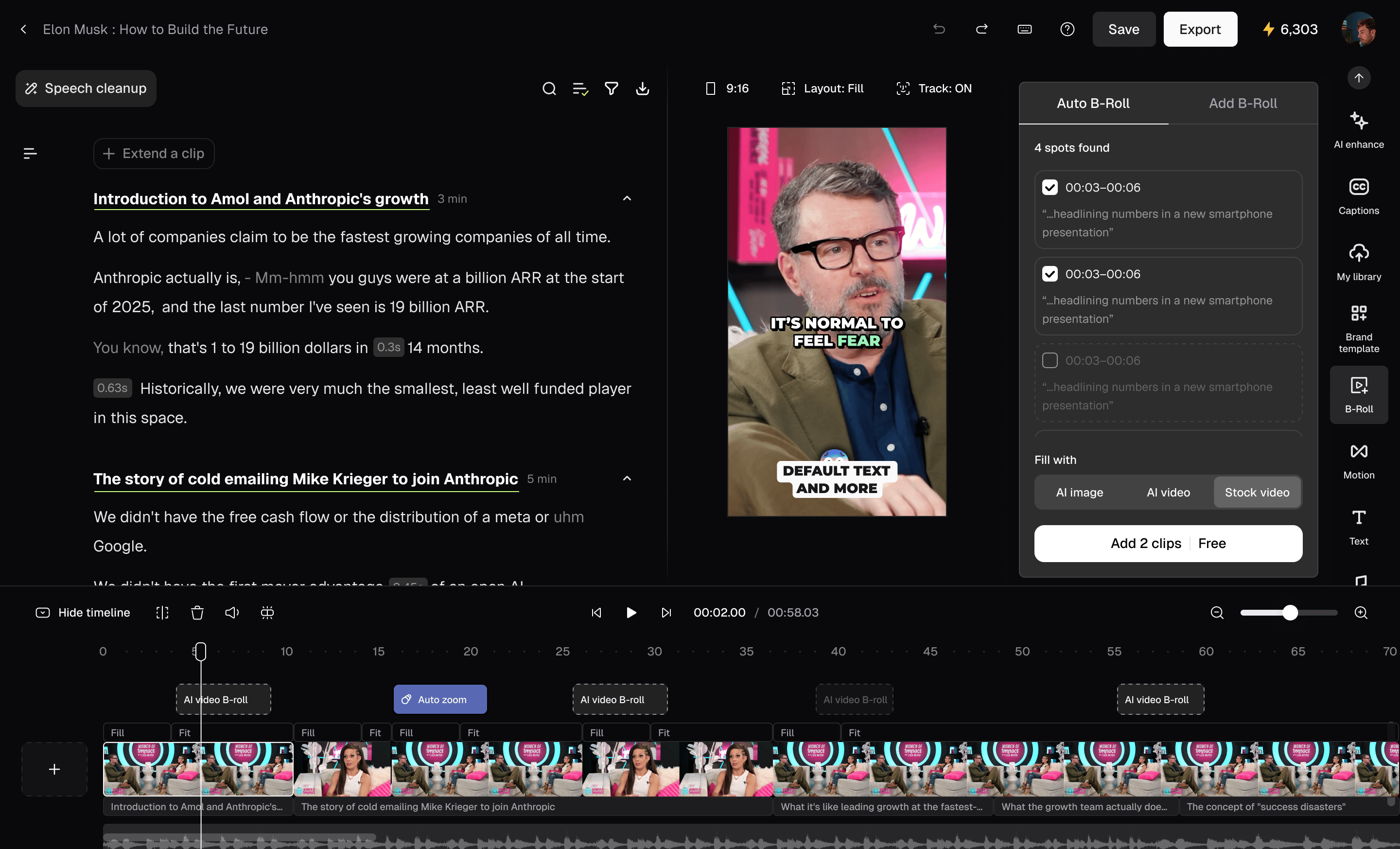
- Click Add B-rolls. The B-roll is added to your timeline.
Add B-roll at a specific moment
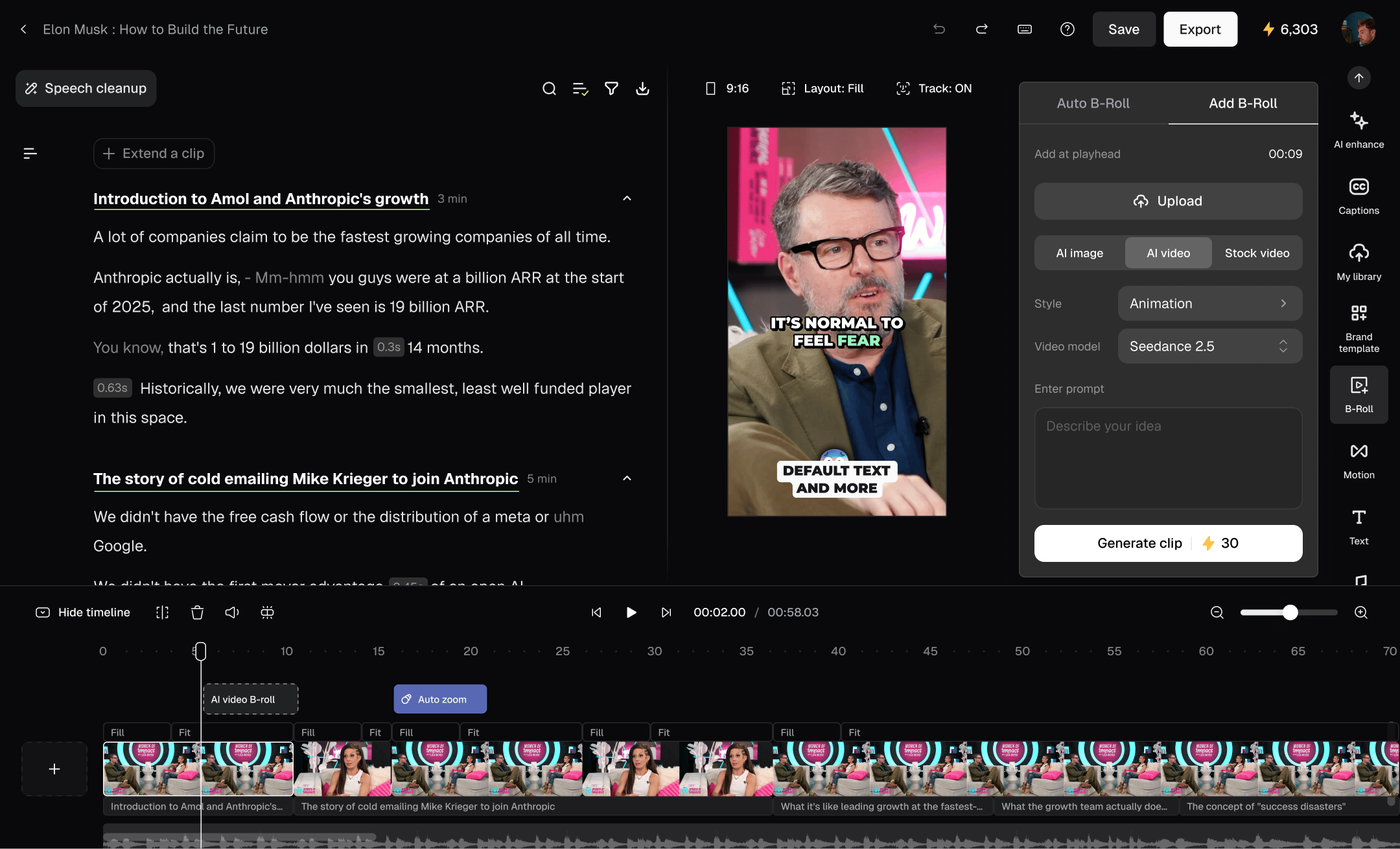
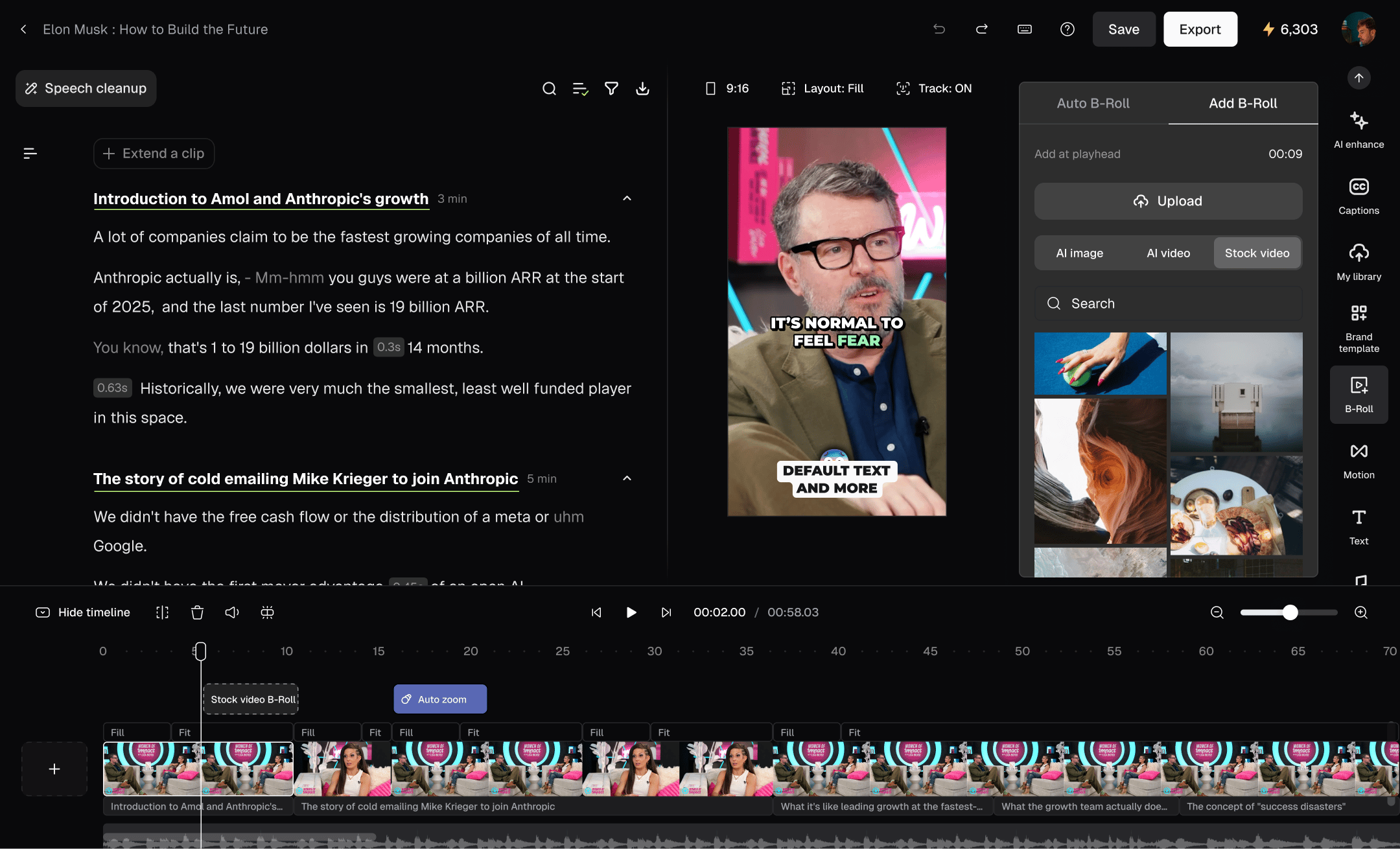
From the timeline and the B-roll panel
- In the B-roll panel, click Add B-roll.
- Move the playhead to where you want B-roll and click Add at [time].
- Describe your idea in Enter prompt, click Upload media, or click Search stock footage.
From a specific sentence
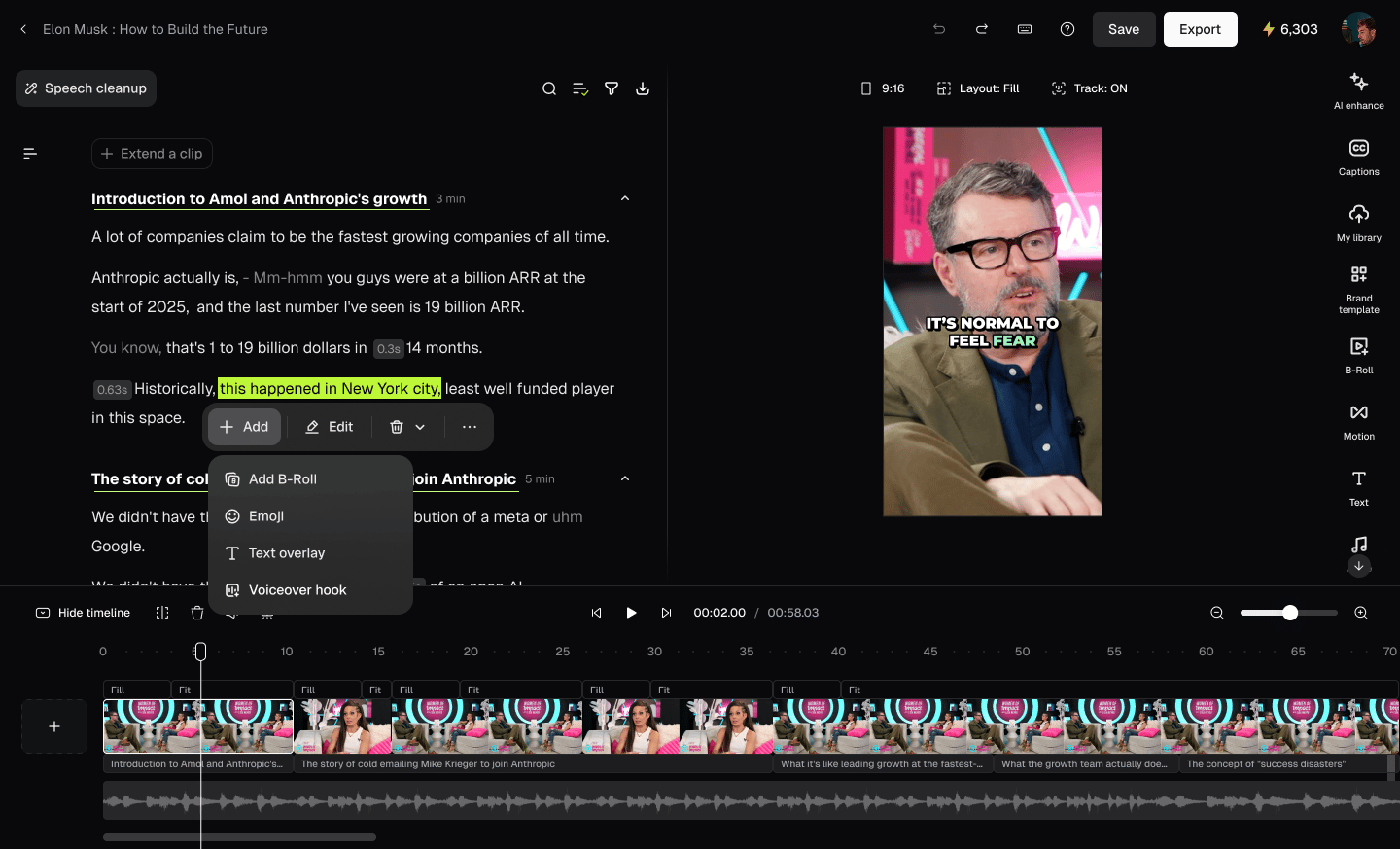
- Simply drag-and-highlight part of the transcript you would like to add B-roll to, and then select the Add option to trigger the Add B-roll prompt box.
- Describe your idea in Enter prompt, click Upload media, or click Search stock footage.
Add B-roll when you create a project
You can add B-roll automatically to your video up to 120 minutes.- Select AI B-roll from the dashboard.
- Add your video and choose AI video B-roll, AI image B-roll, or Stock video B-roll.
- Click Create or Add B-roll in one click. B-roll is added to your video automatically.
Edit or regenerate B-roll
- Move or trim: drag a B-roll on the timeline, or drag its edges.
- Regenerate: click a B-roll, then change the prompt or style and generate again.
- Go back to earlier results: open Recent B-roll in the B-roll panel.
Frequently Asked Questions
What is the difference between Seedream 5.5 and GPT Image 2.5?
When Seedream 5.5 is selected, it draws images whose main subject is a clearly visible human face with no text in the image. GPT Image 2.5 draws all other images, so you may still see GPT Image 2.5 images after choosing Seedream 5.5. If you choose GPT Image 2.5, all images use it. The price is the same for both models.Is B-roll available for everyone?
AI image B-roll and stock B-roll are available on Trial, Starter, and higher plans, while AI video B-roll is available for Trial, Pro, Max, and Business plans. The B-roll feature is currently not available for free plan users.Why did Find spots return nothing?
Yes. Open the B-roll panel and click Recent B-roll to see earlier results for this clip and add them back.Will Find spots replace the B-roll I already added?
It replaces Auto B-roll at the spots you select. B-roll you added manually is kept.Do failed generations use credits?
No. Credits for failed images or clips are returned.What’s the difference between AI Style and a Preset style for Video B-roll?
AI Style is the default style for AI video B-roll. It looks at your original footage and matches its color, lighting, and camera feel, so the B-roll blends in with your video. If you want a specific look instead, pick a preset style before you click Add B-rolls.Can I edit generated B-roll?
Currently, you have the ability to drag and reframe the B-roll. You are also able to move B-roll on the timeline by clicking-and-holding it and moving it wherever you please on the timeline. Furthermore, you can also extend or trim B-roll. Please note: For Stock B-roll, you are not able to extend it past the original stock footage.Can I regenerate B-roll?
Absolutely! Simply click on the B-roll you wish to change. You can revise the prompt, or for AI video, change the style, then generate again to get a fresh B-roll.How much does B-roll cost?
AI image and AI video B-roll use credits:- In the editor: priced per B-roll
- When you create a project: priced per minute of video