> ## Documentation Index
> Fetch the complete documentation index at: https://help.opus.pro/llms.txt
> Use this file to discover all available pages before exploring further.
# Speech Cleanup
## Remove Filler Words and Pauses
Speech Cleanup detects 90%+ of fillers and pauses — you see exactly what gets removed before anything is deleted. You're in control, not the AI.
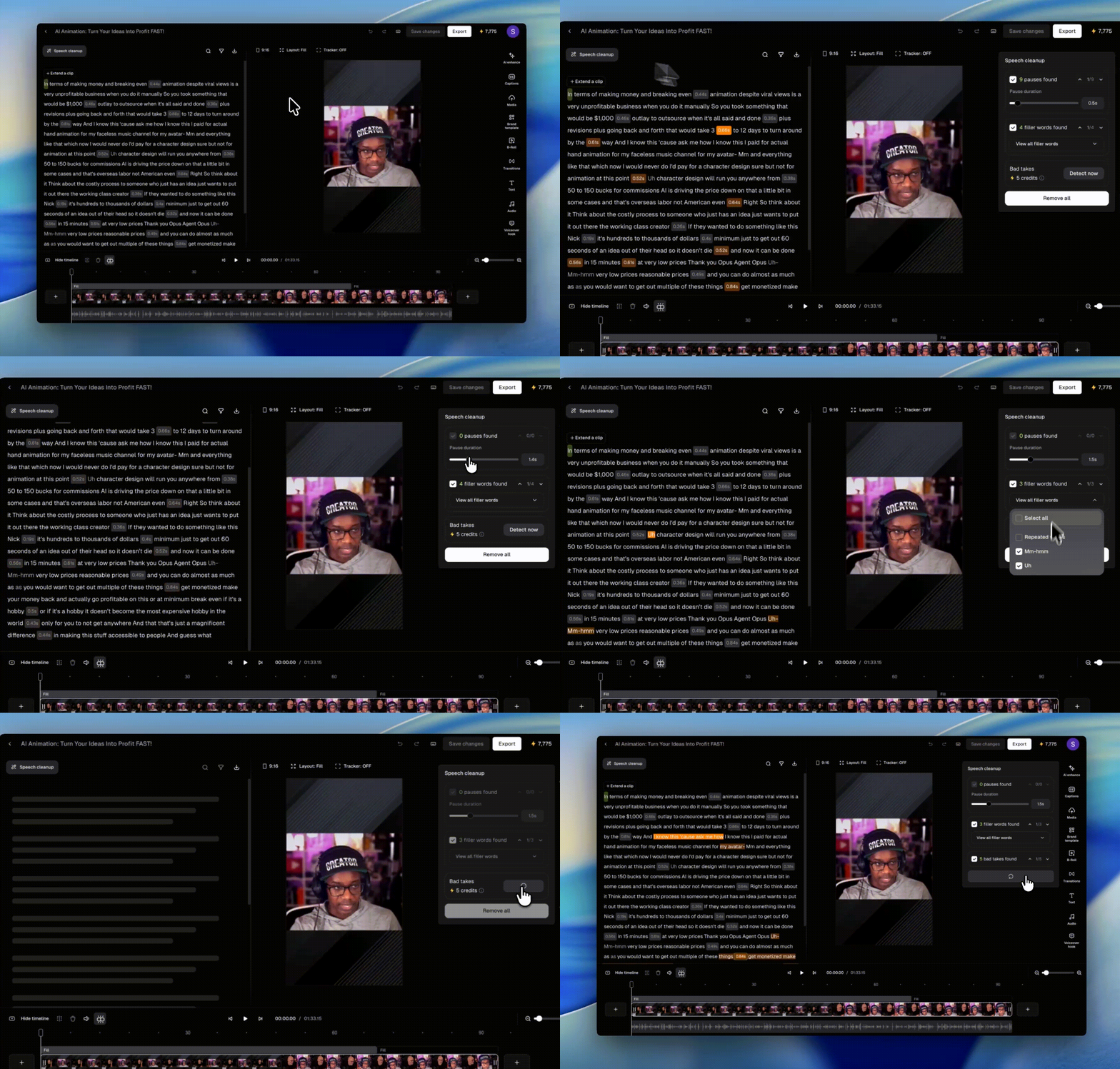
Click **Speech Cleanup** in the top left of the editor.
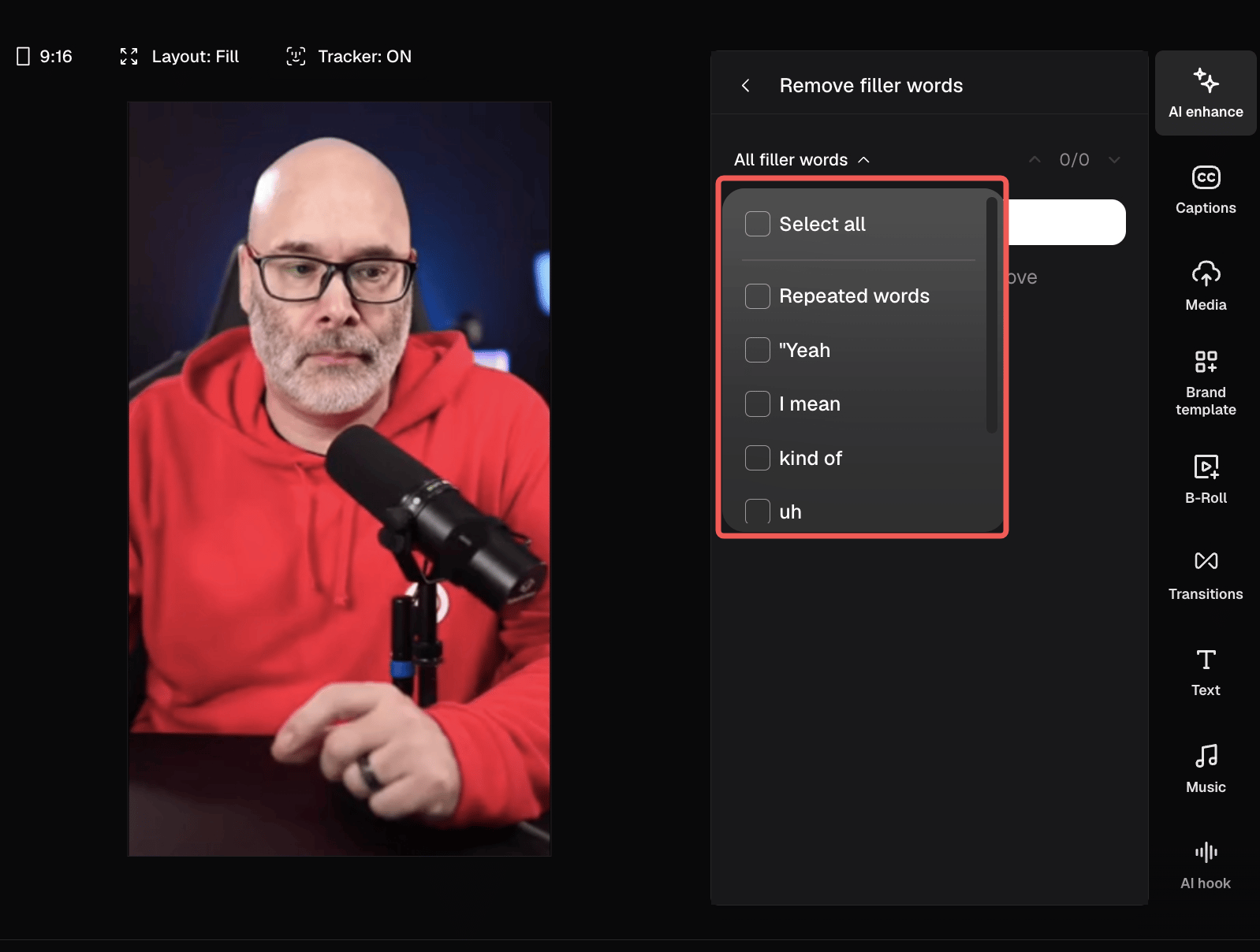
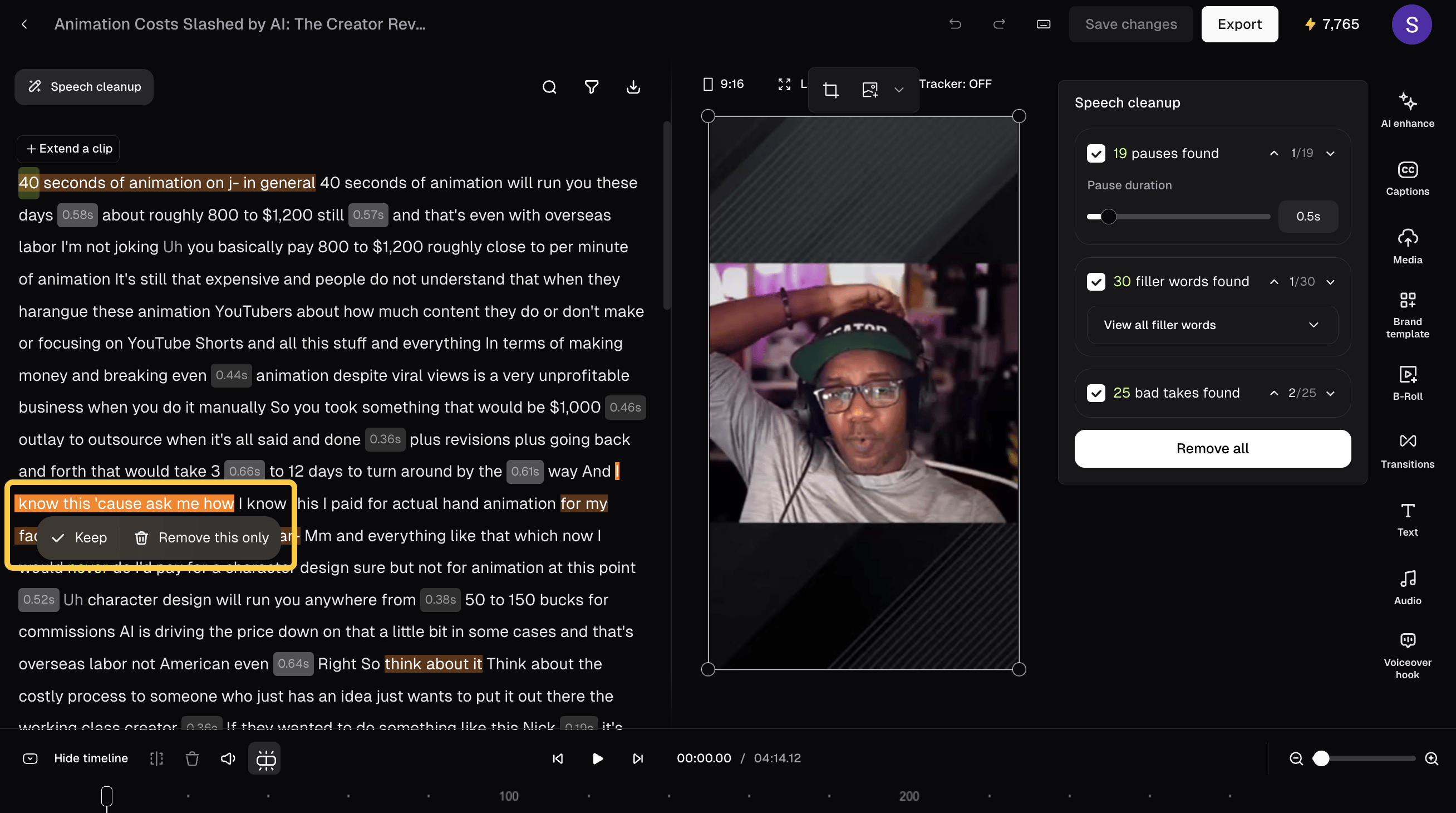
* **Remove Fillers** — all detected fillers are highlighted in your transcript instantly. Check or uncheck which types to keep, then remove in one click. Includes "um", "uh", phrases like "you know", and stutter repeats.
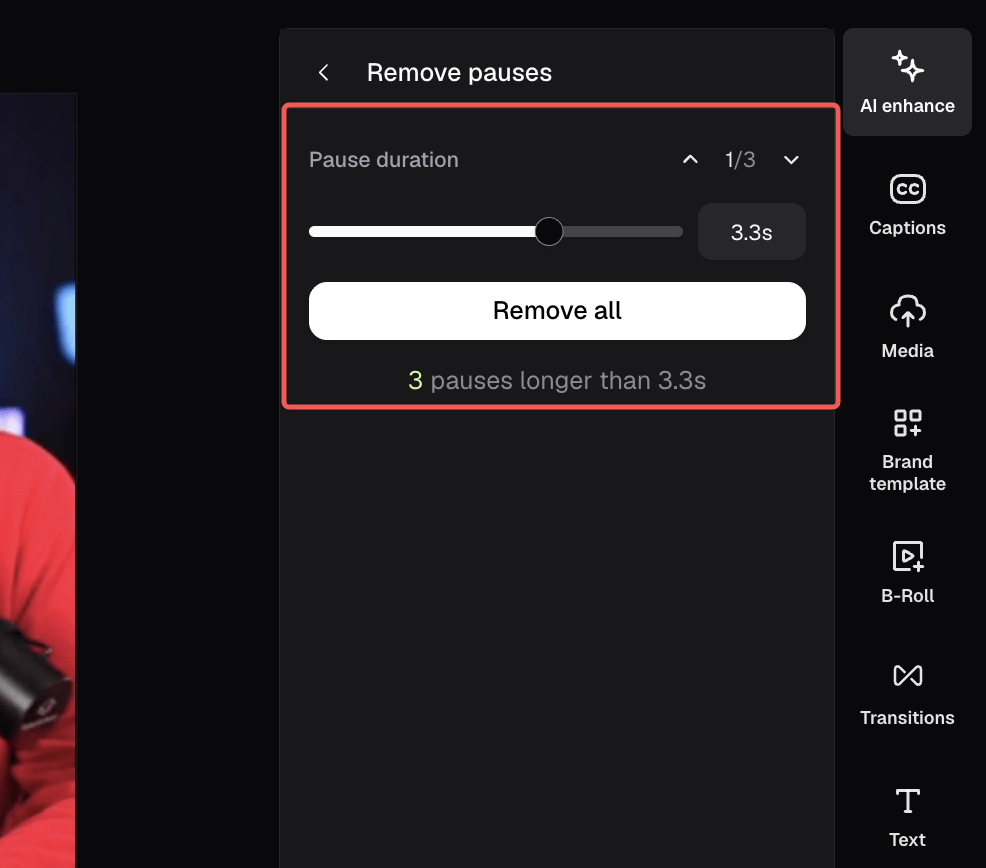
* **Remove Pauses** — by default 0.5 sec, but you can set your silence threshold with the slider and cut all detected pauses in one click. No more choppy cuts from over-aggressive defaults.
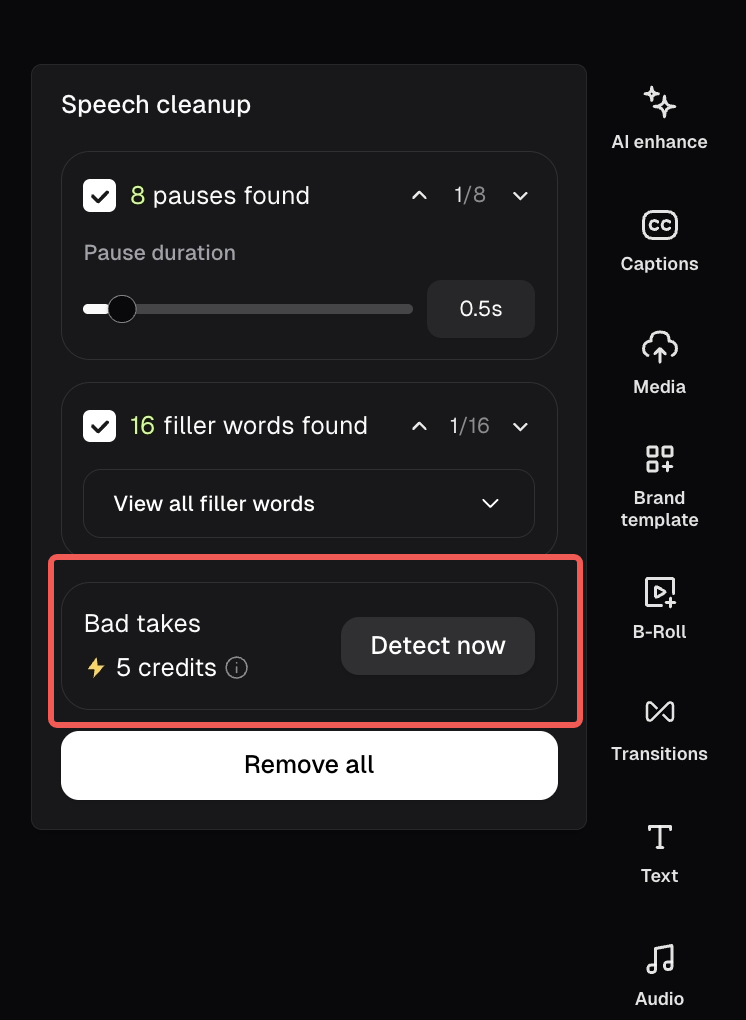
* **Remove Bad Takes** — detects full sentence-level problems that fillers and pauses can't catch: retakes, restarts, self-corrections, and phrase repetitions. Click **Detect now** to scan your transcript. Every flagged segment is highlighted inline with a count, so you can review before cutting anything.
## You're in Control
Use the filler word checklist to select exactly which types to remove — or uncheck anything you want to keep. Nothing gets cut without your approval.
## Set Your Own Pause Duration
Drag the slider to set how long a silence needs to be before it counts as a pause.
## Remove Bad Takes
Click **Detect now** to scan your transcript — every retake, restart, and self-correction is flagged inline. From there you can go through them one by one and remove them individually, or click **Remove all**.
You can also track the detected bad takes from the transcript (highlighted in orange) and decide whether you want to keep or remove them. This ensures you are the one in control.
## Clean Up Your Transcript View
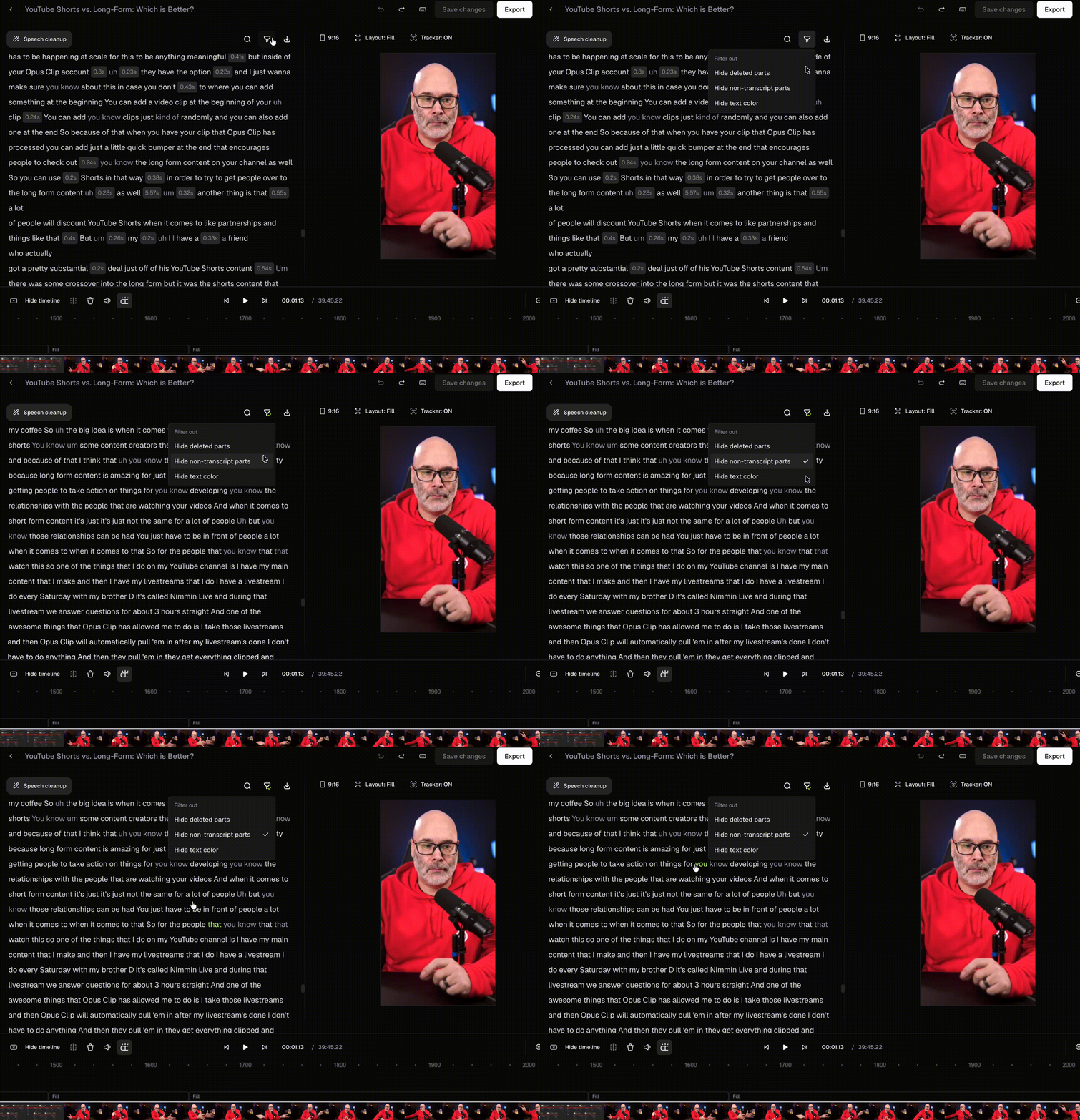
After removing, use the **Filter out** menu at top of the transcript to hide deleted parts for a cleaner view. Any remaining filler words in the transcript will appear in gray so they're easy to spot.
This documentation is built and hosted on [Mintlify](https://mintlify.com), a developer documentation platform.