> ## Documentation Index
> Fetch the complete documentation index at: https://help.opus.pro/llms.txt
> Use this file to discover all available pages before exploring further.
# Agent Opus Prompt Guide
A prompt is the text instruction Agent Opus turns into a video. What you write decides the quality, tone and accuracy of what comes back. This guide covers how to write a prompt, what each mode needs from you, how to bring in your own assets, and what to do when a generation misses.
# 1. How to write an effective prompt
These habits cover most of it. State what the video should cover, give the background Agent Opus cannot guess, hand over your source material or script directly, and keep your request inside what the product is built for.
| **Do this** | **More effective prompt** | **Less effective prompt** |
| - | - | - |
| **Be clear and specific.** State what the video should cover and the style or tone you want. | Create an informative explainer video about future space tourism, with vibrant visuals and a friendly narrator. | Make a video about space travel. |
| **Give context.** Name the topic, the audience, the style, and anything the video must include. | I want a faceless, informative video based on the article below. It should explain why Labubu is gaining popularity. My audience is marketing professionals interested in branding and audience engagement. Keep the facts accurate.
\[Paste the article text here] | Create a video talking about Labubu. |
| **Give the source material.** Paste the blog text, headlines or transcript you want used. Links may not import, and PDFs or Docs are not accepted as files. | Turn my blog post about Labubu below into a 60-second narrated video with smooth motion graphics.
\[Paste the blog text here] | Here is my blog title: Labubu. |
| **Paste your script.** On Standard and Standard+, Agent Opus turns a written script into voiced narration. A full script beats a summary of one. | Make a video about how AI pushes genuine creativity. Here is my script:
Everyone's worried AI is flooding the world with generic content. But that is exactly what is pushing us forward. Tools can pump out endless art and music, but only by remixing what already exists. They cannot touch your lived experience, your voice, your truth. People say AI is lowering the bar. It is raising it. If you want to stand out now, you have to be specific. Honest. Unmistakably you. | Make a video about AI and creativity. Use my script somehow and make it look cool. |
| **Know the limits.** Agent Opus generates new video from your prompt. To edit or clip raw footage, use [OpusClip](https://www.opus.pro/). | Agent Opus is not built to:
- Add animated captions to raw videos. Use OpusClip.
- Turn long videos into short clips. Use OpusClip.
- Pull content from paywalled sources. Paste or summarize the content yourself.
- Recreate exact logos or fonts from a text description. Upload your logo as a reference, but expect possible changes when it is regenerated. Style Maker sets colors; it does not resolve exact font reproduction. | N/A |
If you get stuck, join our [Discord community](https://discord.com/invite/VCqdxQgRXB). We are around to answer questions and connect you with other creators.
# 2. Pick your mode before you write
Agent Opus has four modes in two families. Standard and Standard+ can turn a written script or transcript into narrated video. Premium and Ultra build scenes with optional dialogue. They can use an uploaded recording as narration or dialogue, but cannot generate a voiceover directly from a supplied transcript.
For a full comparison of what each mode includes, see [Choosing a mode](/agent-opus/article/ao-faq#3-choosing-a-mode) in the Agent Opus FAQ.
| **Mode** | **Best for** | **What your prompt should carry** | **Length** |
| - | - | - | - |
| **Standard**
All plans | Narrated explainers and stories | A script, transcript or clear topic plus audience and tone | Up to 10 minutes |
| **Standard+**
All plans | Videos with people or text on screen | Same as Standard, plus what should appear on screen | Up to 10 minutes |
| **Premium**
Pro and Max | Multi-shot scenes, dialogue, ads and music videos | Scenes and actions, with dialogue when needed | Up to 3 minutes |
| **Ultra**
Pro and Max | Photorealistic visuals | Same as Premium, with detail on look and lighting | Up to 3 minutes |
# 3. Standard and Standard+
Narration drives everything here. Agent Opus writes or takes a script, generates the voiceover, and builds visuals to match it. You can also upload a spoken recording. Standard and Standard+ are available on all plans and have no fixed video-duration cap.
## What it is best for
| **Use case** | **Best for** | **Example prompt** |
| - | - | - |
| **Explainer**
Teaching something clearly and simply | What is X videos, how-it-works videos, step-by-step guides, concept breakdowns | Create a video on the history of the internet. Include specific dates, breakthroughs and modern trends. |
| **Thought leadership**
Sharing your ideas, frameworks and opinions | Mental models, lessons learned, hot takes about your industry | Create a polished 45-second LinkedIn video on self-sabotage. Include these ideas: awareness means nothing without intentional action; self-sabotage is a set of habits, not an identity; inner reflection is how you spot the pattern. Keep the tone clear, concise and professional. |
| **News**
Explaining what happened and why it matters | Geopolitics, local updates, market changes, product launches | Create a 90-second video explaining this week's interest rate decision and what it means for mortgage rates. Keep the facts accurate. \[Paste the news article text here] |
## How to prompt
* **Hand over the full script.** A complete script beats a description of one. Script length and speaking pace determine the final runtime.
* **Name the audience and the tone.** Marketing professionals and curious teenagers get different scripts from the same topic.
* **Paste your sources.** Paste the article text, transcript or notes you want the facts drawn from. Links may not import and paywalled pages cannot be read, so paste the text itself.
* **Pick the voice.** Open **Audio** in the composer to choose a built-in voice, clone your own or upload a spoken recording. You can also change it at the Script stage.
* **Leave shot-by-shot direction out.** Describe the story and the feel. The optional storyboard stage is where you shape individual shots.
# 4. Premium and Ultra
These modes build a sequence of shots, with lip-synced character dialogue when needed. Describe scenes and actions; dialogue is optional. Available on Pro and Max. Videos run up to 3 minutes, or up to 10 minutes with **Song to video**.
## What it is best for
| **Use case** | **Best for** | **Example prompt** |
| - | - | - |
| **Ads and promos**
Getting people interested in a product, event or service | Product launches, brand spots, campaign ads. **Assets to Ads** builds an ad from your own product images, and works in every mode. | Create a 30-second holiday ad for Agent Opus.
Scene 1: a designer alone at her desk late at night, staring at an empty timeline.
Scene 2: she types one line into Agent Opus and her screen fills with a snowy, cinematic city street. She says: "That took ten seconds."
Scene 3: her teammate leans over her shoulder and says: "Ship it." |
| **Stories with dialogue**
Telling a story through characters who speak on camera | Skits, short films, character-driven social content | Create a 45-second comedy skit. Two coworkers in a break room argue over the last slice of pizza.
Maya: "I called it this morning."
Dev: "Calling it is not a legal claim."
End on a third coworker walking in, already eating it. |
| **Photorealistic scenes**
Footage that should look filmed, not generated. Best on Ultra. | Lifestyle shots, products in use, cinematic b-roll | Create a 20-second photorealistic video of a barista pouring latte art at golden hour. Slow push-in, shallow depth of field, warm window light. |
| **Music videos**
Turning a song into a performance video, with visuals cut to the track | Upload the song with **Song to video**, up to 10 minutes. Only the audio is used. | Create a music video for my song. A singer performs on a rooftop at night as the city lights come on. Cut between close-ups of her singing and wide shots of the skyline. Moody, neon-lit, handheld feel. |
| **Style match**
Recreating the look of a video you already have, with **Reference to video** (beta) | Matching a past campaign, a mood reference or a trend format. The reference audio is not used. | Match the style, pacing and color grade of the attached video, but make it about our new running shoe. Use @Object image 1.png and @Object image 2.png for the product. |
## How to prompt
* **Describe what happens.** Write the actions and visual details for each beat. Include the lines characters speak if the scene needs dialogue. Silent scenes and music videos do not need spoken lines.
* **Add references for anything recurring.** Upload images of characters, objects and logos that appear more than once. Consistency across shots depends on them.
* **Review the script before clips generate.** The script sets scene order, timing and speech. Fixing the story there is far cheaper than fixing it after the clips are made.
* **Keep it within 3 minutes.** Premium and Ultra cap at 3 minutes. Shorten longer stories, or use Standard or Standard+ for a longer narrated video. **Song to video** is the exception and runs up to 10 minutes.
* **Upload recorded speech for narration or a specific voice.** Premium and Ultra can use a spoken recording as off-screen narration or character dialogue. Unlike Standard and Standard+, they cannot generate a voiceover directly from a supplied transcript. Built-in voice selection and voice cloning are not available.
* **For music videos, describe the performer and the look.** The track sets the pacing, so you do not need to time scenes to the lyrics.
# 5. Referencing your own assets
Your own images, audio and references make a video feel like yours. Agent Opus redraws uploaded images, including logos, in the chosen style. Uploads guide the result but do not guarantee exact reproduction. Check likeness, lettering, colors and fine details in the generated video.
## What you can bring in
* **Images.** Product photos, screenshots, headshots and logos. Upload up to eight in **Assets**.
* **Spoken audio.** Upload a recording through **Audio** in the composer or **Audio to video**. In Premium and Ultra, it can serve as narration or character dialogue.
* **Music.** A song, through **Song to video**.
* **Reference video.** A video file or public link, through **Reference to video**, to match its style.
* **Articles and documents.** Paste the text into your prompt. Links may not import, and PDFs or Docs are not accepted as files.
## Upload first
Open **Assets** in the composer and add each image as a character, logo or object, up to eight in total. Supported formats are PNG, JPG, WebP, GIF, SVG, HEIC/HEIF, TIFF and AVIF.
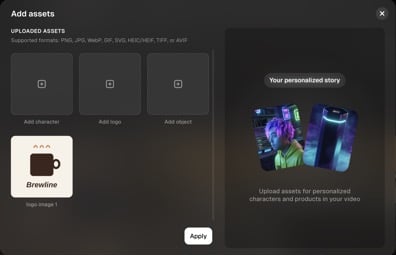
*Open Assets in the composer and add each image as a character, logo or object.*
## Reference them clearly
Type **@** in your prompt and pick the asset from the dropdown. It drops in as a tag linked to that image. Naming a file in plain text does not link it.
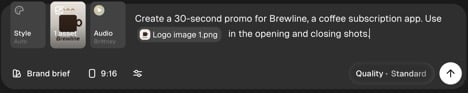
*Type @ in your prompt and pick the asset from the dropdown.*
## Describe the job, not just the file
Say what the asset is and what you want it to do.
* **Better:** Show @Character image 1.png placing @Object image 1.png on a desk. End on @Logo image 1.png.
* **Worse:** Use my images somewhere.
# 6. Why the AI sometimes gets details wrong
The video models are powerful, but not perfect. You will sometimes see odd artifacts, physical impossibilities or details that morph mid-shot.
## Why it happens
The model has no real understanding of physics, anatomy or logic. It generates video by predicting patterns from the images and clips it was trained on. Video is harder than a still image because the model has to hold characters, objects and backgrounds steady frame after frame. It is calculating probabilities rather than simulating the real world, so it loses track of complex structures as a shot goes on.
## What you will see
* **Anatomical errors.** Hands and fingers are the usual culprits: extra digits, missing ones, limbs bending the wrong way.
* **Physics and space.** Characters walking through walls, objects floating, liquids running upward, items changing size.
* **Morphing and flickering.** Clothing changes color, faces shift, background objects appear or vanish.
* **Object interactions.** Holding a cup, typing, playing an instrument. Hand and object often blend together.
* **Text and logos within generated footage.** Lettering, signage and logos can become distorted or unreadable. This risk also applies to uploaded logos when they are regenerated.
* **Reflections and shadows.** Mirrors and water reflect the wrong thing, and shadows fall in the wrong direction.
If you hit one of these, simplify the action or revise the visual direction. For Standard and Standard+, shape individual shots at the storyboard stage; for Premium and Ultra, describe shorter, simpler shots in the scene instructions.
The models behind Agent Opus come from specialist third-party vendors. We do not train them in-house, so their limitations are ours too.
Avoid repeatedly regenerating the whole project with the same prompt to fix a possible model limitation. Simplify the request first, and [contact support](/docs/article/how-to-contact-support) if the problem persists. Full-project regenerations are separate from the Standard and Standard+ editor free retry described below.
# 7. Editing your video
In every mode, editing generates new footage for the affected part and blends it back into the video. The final video may be reassembled with the regenerated footage. An edited shot is subject to the same model limitations as the original. Review the edit estimate before proceeding.
## Standard and Standard+
1. **Acknowledge the warning.** Before your first edit in each project, acknowledge that AI editing is experimental and may contain errors or miss your request. Each video includes one free retry.
2. **Select the moment.** Open the finished video and click the change box. Use **Screenshot** to point at a moment, or **Timestamp** to pick a point on the timeline, then drag either end to set the range.
3. **Describe the change.** Name the object or area and what should happen to it. Change the sky to a sunset. Give the character a red jacket. Attach a reference image with **+** if it helps.
4. **Review the cost before generating.** Paid edit previews use credits when they are generated, before you apply them. The included free retry is the exception.
5. **Review the result.** Generated edits remain visible even when they do not match your request. Compare the preview with the original and apply it if you want to keep it. Discarding a paid preview does not reverse the charge; edit-quality failures are not refunded.
6. **Use the free retry if needed.** If the result is flagged as not matching your request, choose **Try again, free** to retry or **Leave it** to stop. There is one free retry per video, with no expiry. Once used, further attempts use credits.
## Premium and Ultra
1. **Edit through project chat.** Open the finished video and select **Edit**, or type the request in chat. Name the scene and describe the result you want, for example: the ending feels abrupt, hold on the finished loaf a little longer.
2. **Confirm the estimate.** Review the proposed change and its cost before confirming. The edit regenerates the affected footage and may rebuild the final video with those updated clips.
3. **Mind the 30-day window.** Premium and Ultra projects can be edited for 30 days. After that the project shows as **Expired** or **Locked** and editing is unavailable, though the finished video stays available to watch and download.
## Pro tips
* **Be specific.** Mention lighting, colors and the exact action.
* **Change one thing at a time.** Rewriting a whole scene in a single edit invites visual inconsistency.
* **Expect the same limitations.** The editor generates new footage, so morphing and anatomical quirks can appear in an edit too.
# 8. Content filters and error messages
A content-filter block is different from a generated edit that misses your request. A generation blocked by the AI vendor's content filter does not cost credits. For a visible Standard or Standard+ edit that misses your request, follow the review and free-retry steps in [Editing your video](#7-editing-your-video); a quality warning does not block the result or trigger a refund.
* **Rephrase in neutral language.** Describe the scene plainly.
* **Rephrase harmless requests that are misread.** Terms associated with violence, explicit content, copyrighted figures or hazardous activity can trigger a filter. Describe your intended scene plainly and follow the product's content rules.
* **Stay on the visual.** Describe lighting, camera angle and movement rather than abstract concepts.
Some Standard and Standard+ editing requests are unsupported. If a request is refused before generation, follow the suggested route: rephrase it, use the OpusClip editor, or cancel. This is different from a generated edit that is shown with a quality warning. For recurring generation errors, [contact support](/docs/article/how-to-contact-support) before repeatedly regenerating the whole project.
[Contact support](/docs/article/how-to-contact-support) with your project link or ID for anything else.
This documentation is built and hosted on [Mintlify](https://mintlify.com), a developer documentation platform.